| Release Date | March 1, 2016 | ||||||||
| Product(s) Affected | Kangaroo Mobile Desktop | ||||||||
| Operating System | N/A | ||||||||
|
NOTICE: The information in this document, including products and software versions, is current as of the Release Date. This document is subject to change without notice. |
|||||||||
|
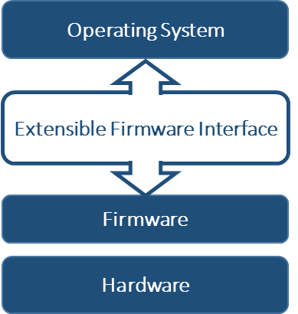
Introduction Regardless of what operating system you decide to install, there's one simple rule that holds true for all -- "you must have EFI compatible boot media". In this article we'll talk a little bit about EFI and explain why EFI compatible boot media is essential, and how to use the EFI Boot Manager to boot to USB media. What is EFI and why is it important?
What's is important to note, however, is that EFI based systems have very specific file system requirements when it comes to loading the boot manager.. but for the sake of this article, rather than diving into the technical details of partition tables, system partitions and boot loaders, we'll just focus on one simple fact -- "when you create bootable media for your Kangaroo Mobile PC you need to make sure that you're using the FAT32 file system". For additional information on EFI/UEFI, please check the following resources: |
|||||||||
| Tools for Creating EFI Compatible Boot Media | |||||||||
|
It is not the policy of InFocus Corporation to recommend or endorse Third Party software resources, thus the information included below is provided strictly as reference material only. Users are advised to research any referenced materials prior to use and assume all risk associated with such use. What to know/prepare in advance
Popular Media Creation Tools Now there are tons of great resources available online that provide detailed step-by-step instructions for creating bootable media from scratch, but unless you're a hobbyist and are comfortable with command line operations it may be in your best interest to leverage well known Open Source tools (such as Universal USB Installer, MultiBoot or Rufus), or relevant obtain media creation tools directly from the operating system provider, such as Microsoft's Windows Media Creation Tool.
For step-by-step instructions for installing Windows 10 using the Microsoft Media Creation Tool, please see our article on the subject: How to refresh, reset and re-install your operating system. |
|||||||||
| Booting to the EFI-USB Boot Device | |||||||||
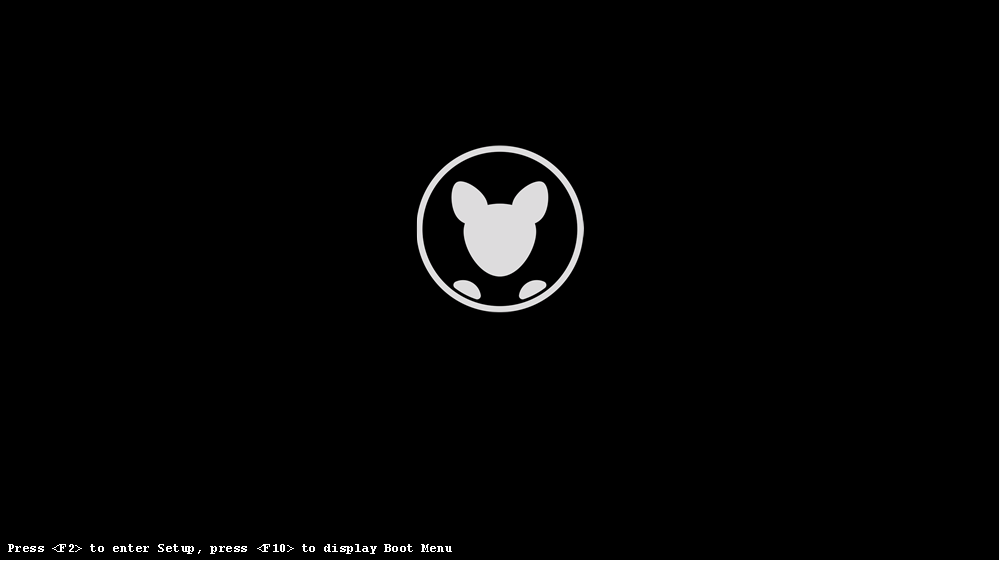
Before you begin ensure the following:
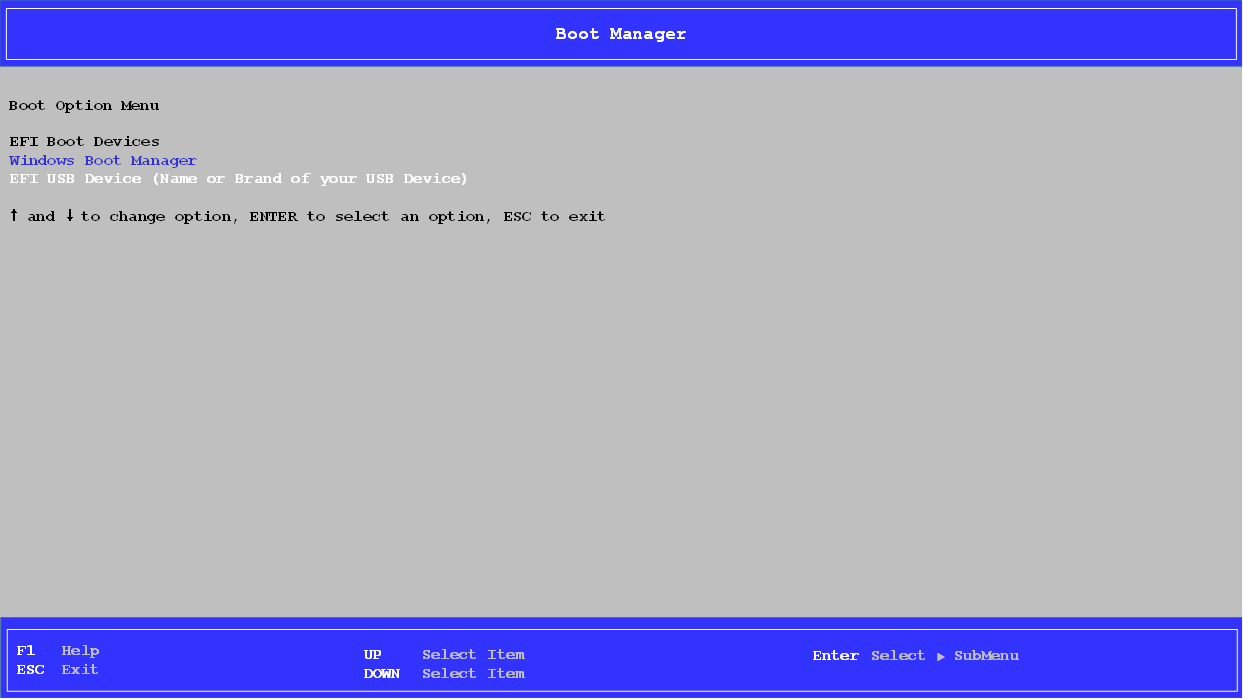
Note: Upon completing the above steps you will be presented with the EFI Boot Manager shown below. If your system fails to display the Boot Manager it's possible the monitor/panel being used requires more time to process the signal than is allocated in current specifications; it's common with older devices to include a slight delay in the time between when the HDMI signal is initiated and the actual signal is displayed; in such cases you may wish to begin pressing the F10 key on your keyboard immediately after pressing the power button. Configuring the Boot Manager
And that about sums it up.. Your system should now boot directly to the EFI compatible boot media created in prior steps. |
|||||||||
©Copyright 2015 InFocus Corporation
InFocus Corporation shall not be liable for technical or editorial errors or omissions contained herein. The information provided is provided "as is" without warranty of any kind. To the extent permitted by law, neither InFocus nor its affiliates, subcontractors or suppliers will be liable for incidental, special or consequential damages including downtime cost; lost profits; damages relating to the procurement of substitute products or services; or damages for loss of data, or software restoration. The information in this document is subject to change without notice. InFocus Corporation and the names of InFocus products referenced herein are trademarks of InFocus Corporation in the United States and other countries. Other product and company names mentioned herein may be trademarks of their respective owners.
Comments