| Release Date | January 19, 2016 |
| Product(s) Affected | Kangaroo Mobile Desktop |
| Operating System | Microsoft Windows 10 |
| Application(s) Affected | TightVCN, RealVCN, Intel HD Graphics Driver |
|
NOTICE: The information in this document, including products and software versions, is current as of the Release Date. This document is subject to change without notice. |
|
|
Problem Description Kangaroo Mobile Desktop systems running an active VNC connection while disconnected from the Kangaroo Dock, or other Expansion Base accessory, may experience a random/intermittent lag in graphics performance. While the exact symptoms experienced are highly dependent on the applications being accessed and their use of graphics memory, following are a few of the more notable characteristics of this condition:
|
|
|
Root Cause This is a compatibility issue that is known to occur between certain graphics device drivers and remote access software applications, and is directly linked to the manner in which both handle power and resource management under the above described conditions. While the Intel Graphics driver is known to be operating within specifications (and performing precisely as expected), it's understood that when the primary HDMI device is disconnected from the system (and EDID is no longer present) the Intel Graphics driver responds accordingly by adjusting system resources to invoke certain aspects of its GPU power management plan. Note: It should be noted that this problem is not isolated to Intel, and may occur with any GPU Chipset driver and Remote Access application combination where EDID presence is leveraged (by the chipset manufacturer) to effect power/resource management logic. |
|
|
Workaround/Solution The only known workarounds to this problem are:
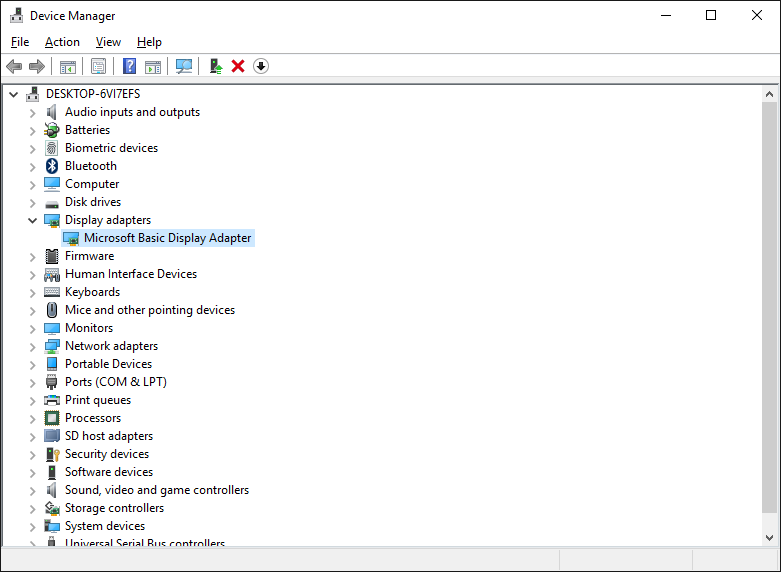
The sections that follow outline the detailed procedures required to install the native Microsoft Windows Graphics Driver. IMPORTANT NOTE: Native operating system drivers are by design intended to provide generic hardware enabling support for certain devices, and in some cases may not support or take advantage of certain vendor-unique features, resulting in unpredictable behavior. |
|
|
Key Steps in This Procedure
|
|
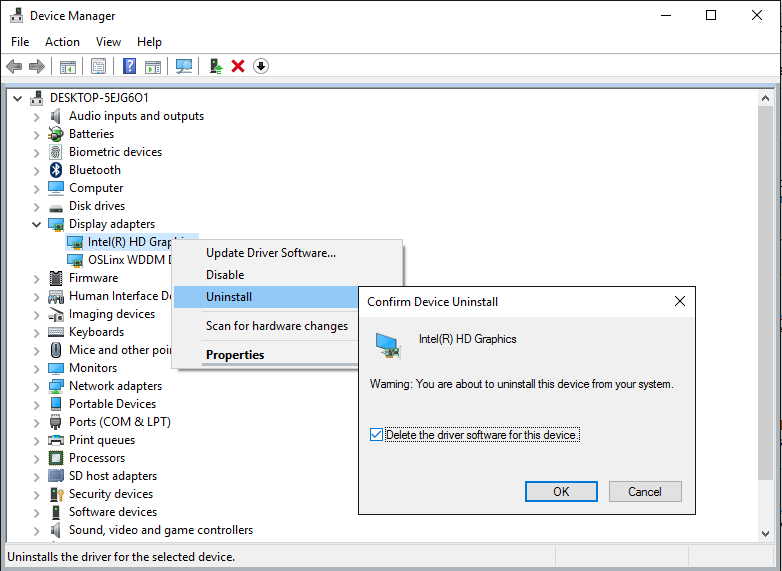
| Uninstalling the Intel Graphics Driver | |
Note-1: Upon completion Windows will prompt you to restart your computer, at which time the Intel driver will be reinstalled; this is the expected result, and is necessary to ensure certain traces (which are left during the re-installation) can be utilized as part of the next step in this procedure. Note-1: After restarting your computer it may take the operating system 5~10 mins to re-detect the hardware, locate and re-install the driver; if you wish to accelerate this process you can return to Device Manager, click the Action menu and select Scan for hardware changes. Once the driver is re-installed Windows may prompt you once again to restart your computer; follow the prompts, restart and move onto the next step once complete.
|
|

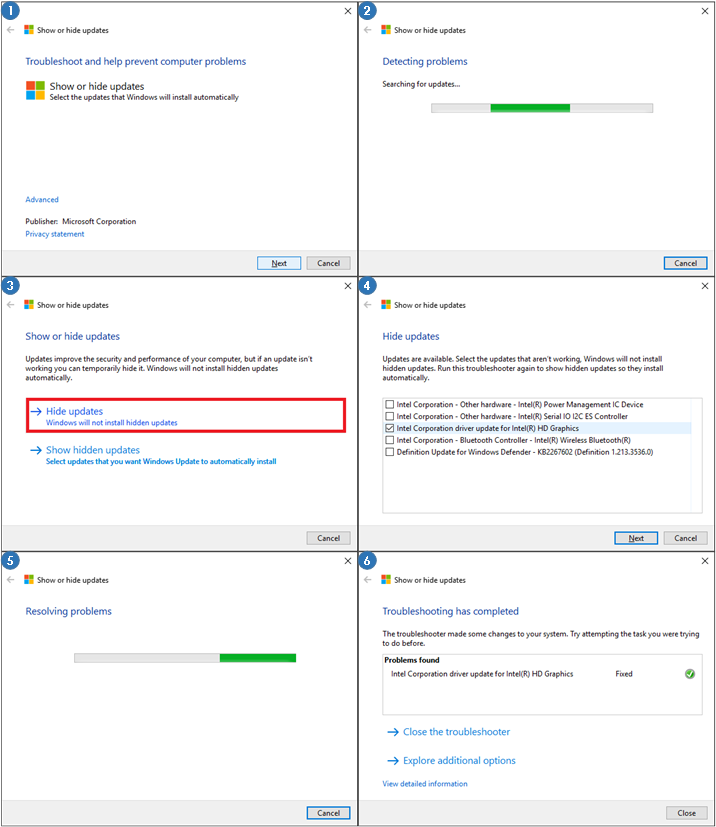
| Disabling Windows Updates (for the Intel Driver) | |
|
Background One of the key features of Windows Update is its ability to detect key components within your PC's hardware and automatically locate and install the latest available driver from the hardware manufacturers. This is usually a good thing (and often critically important), as hardware manufacturers frequently release drivers as a means of addressing performance and stability problems; however, in the context of this workaround, since we intend to install the native operating system driver then we need to take specific steps to ensure that Windows Update doesn't undo this work by automatically detecting your graphics hardware and installing the latest Intel driver when you least expect it.
 |
|
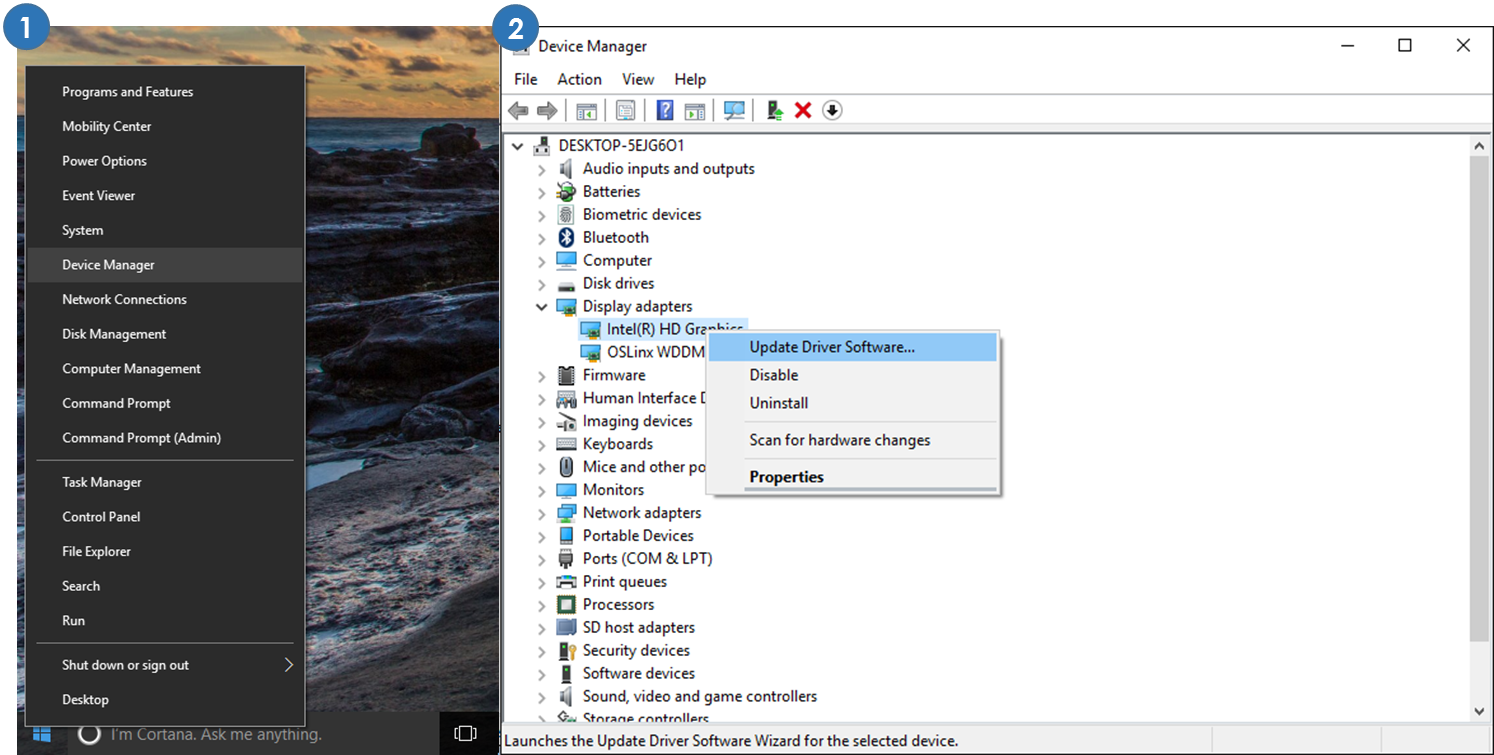
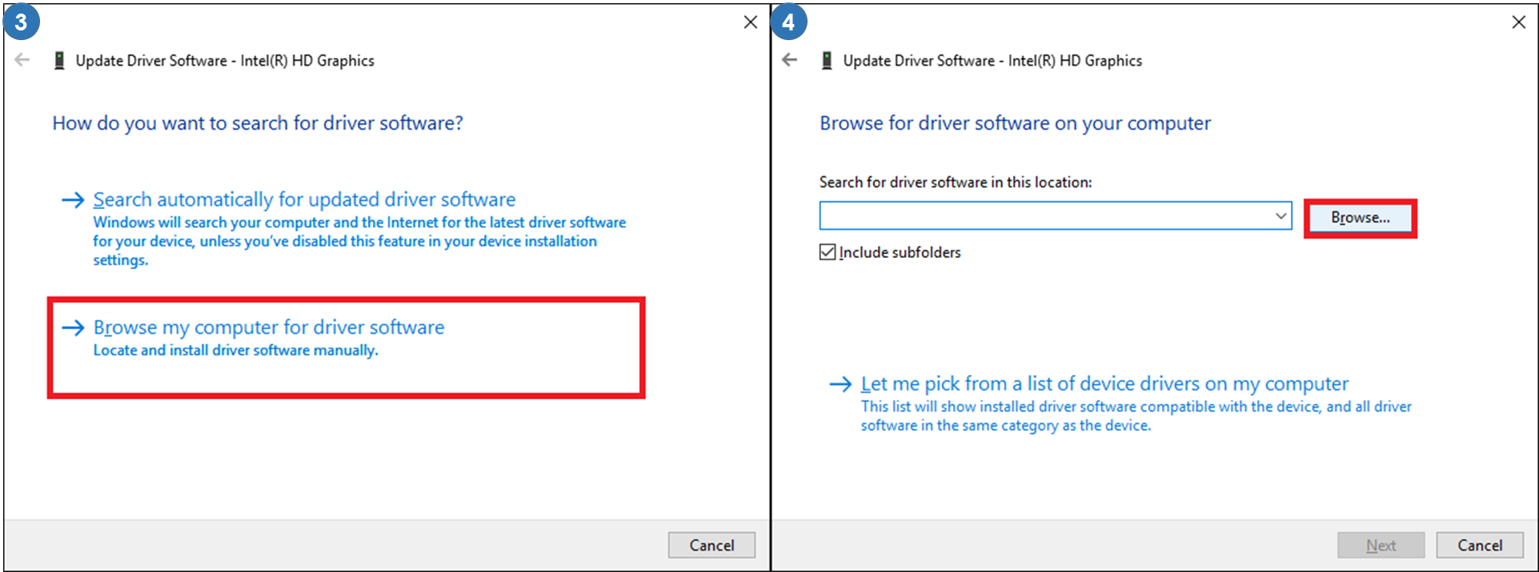
| Installing the Native Graphics Driver | |
C:\Windows\System32\DriverStore\FileRepository\display.inf_amd64_944bbb58c2ca7d39 NOTE: The "display.inf_amd64" folder is dynamically created when the Windows operating system is installed, and as such certain characters of the folder name will be unique to your individual system and will not be a precise match with the path provided above.
|
©Copyright 2015 InFocus Corporation
InFocus Corporation shall not be liable for technical or editorial errors or omissions contained herein. The information provided is provided "as is" without warranty of any kind. To the extent permitted by law, neither InFocus nor its affiliates, subcontractors or suppliers will be liable for incidental, special or consequential damages including downtime cost; lost profits; damages relating to the procurement of substitute products or services; or damages for loss of data, or software restoration. The information in this document is subject to change without notice. InFocus Corporation and the names of InFocus products referenced herein are trademarks of InFocus Corporation in the United States and other countries. Other product and company names mentioned herein may be trademarks of their respective owners.
Comments