Using your iPad to control your Kangaroo Mobile Desktop
| STEP-1: Download/install OSLinx for Windows |
|
Download OSLinx for Windows onto your Kangaroo Mobile Desktop computer. To download OSLinx for Windows:
|
|
STEP-2: Download/install OSLinx for iOS |
| Download and install OSLinx for iOS onto your iPad . To download OSLinx for iOS:
Note: OSLinx is not presently supported on iPhone or Android devices.
|
| STEP-3: Open the apps and connect the devices |
|
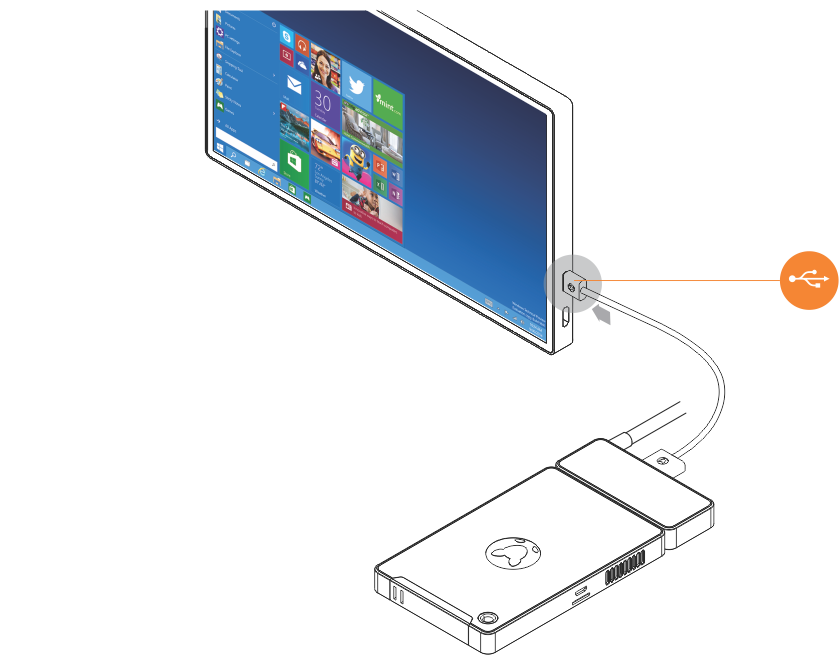
Open the OSLinx application on each of your devices, and connect the Kangaroo Mobile Desktop to your iOS device using the USB cable provided by your iOS device manufacturer.
|
| STEP-4: Connection Established |
|
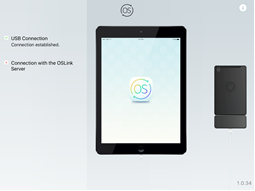
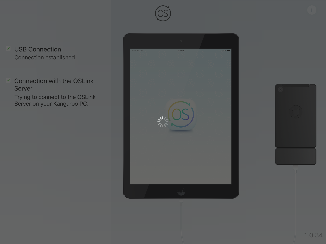
Once connected, your iOS device will negotiate the connection with the Kangaroo Mobile Desktop and display the following screens:
|
Comments