|
What is the Action Switch, and how does it work? |
|
Introduction The Action Switch is a simple [switch activated] hardware feature that allows you to connect, view and control your Kangaroo Mobile computer in a secure (disconnected) environment.
All Remote Desktop services available on the market today have one thing in common -- they require both the Host and Remote computers to be connected to internet (which allows IP based targeting) or operating on the same network with sharing enabled. The Action Switch requires neither.
Sliding the Action Switch on your Kangaroo Mobile Desktop (item 4 in the above Component & Feature illustrations) enables WiFi Direct mode on the Kangaroo Mobile Desktop, thus making your computer available (securely) to incoming connections.
What do we mean by disconnected? In an environment where network or internet access is not available, or desirable for security purposes, activating the Action Switch will allow you to connect to your Kangaroo Mobile Desktop and remotely view and control your computer using a range of other devices.
How do I use it? While Microsoft Windows 10 Professional includes all of the necessary protocols [to enable Remote Desktop services] by default, Windows 10 Home Edition explicitly excludes such services. Nevertheless, there are many Open Source VNC (Virtual Network computing) solutions available that will allow you to enable Remote Desktop/Access capability on a Windows Home Edition version of the Microsoft Windows 10 operating system. |
|
Using VNC Software to securely connect your Kangaroo Mobile Desktop |
|
What VNC software should I use? One of the great things about VNC software is that much on the market today remains Open Source, and there are many popular solutions available which enable remote connections using a variety of devices, such as Android, iOS and Linux. And most importantly, many of them are free for non-commercial use, and can be used independent of the Action Switch when both Host and Remote computers are either connected to the internet or operating on the same network.
Following are a few of the popular solutions that we've been playing with:
Please Note:
Definitions
What do I need to get started? Both devices (host and client) need to be running a compatible VNC solution. This means that you will need to locate and download a VNC Server application to the host (i.e., your Kangaroo Mobile Desktop), and a VNC Client application (or viewer) to your remote device (your Windows, iOS or Android device).
Getting Connected - Basic Procedures
Note: Once the VNC software is activated on both Host and Client devices all you need to establish the connection is a common set of credentials (IP address, authentications pass code, or username and password of the Host computer). Each VNC software differs slightly in their secure authentication methods, so this will require a basic understanding the VNC software that you've installed.
The following example assumes you have already installed the relevant VNC software on both the Kangaroo Mobile Desktop and the Remote device that you wish to use to control your Kangaroo product. |
|
Preparing for a Remote Connection |
|
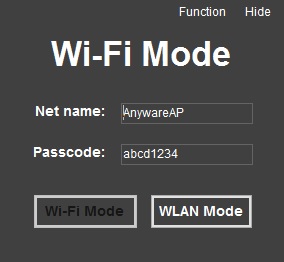
| Using a Remote Device to Connect to the Kangaroo via WiFi Direct |
Important Note: To establish the connection between the two computers you may be required to specify the IP address or computer name of the Host computer and use the credentials (username and password) to login using the remote device. |
 in the Windows taskbar notification area).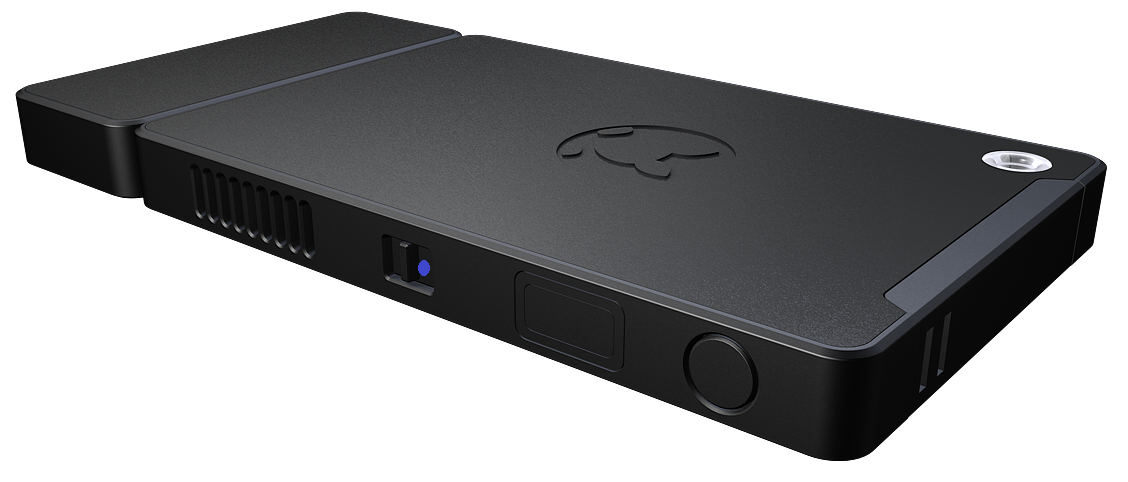
Comments