Window 10 includes several tools (both new and old) for backing up and restoring your data. However, one of the most important things you can do when after unpacking a new PC is Create a Recovery Disk.
Yes.. It will take a few hours, but it could save you weeks.. Now that's pretty good insurance, and it's basically free.. So let's get to it.
Things to know before we get started:
- You will need to prepare one USB flash media device (flash drive or disk-on-key) with a minimum capacity of 8GB.
- Any data residing on this device will be lost, so if there's anything of importance on the drive then you should back it up on alternate media before continuing.
- Keep in mind that this drive is intended to be used for emergency purposes, so once you're done you'll want to store it in a safe place.
| Step-1: Creating a USB Recovery Drive |
|
Note: The Kangaroo factory preinstalled image includes the Recovery Drive application on the Start menu by default.
To start the Microsoft Recovery Media Creator application follow 1 of the 2 steps below:
|
|
Step-2: Preparing your media |
|
Note: The USB device your using should be shown under 'available devices'. Keep in mind that the volume name for your device may be different than shown in the image. If Windows does not detect any devices then you may consider using alternate media, or restarting your system. |
| Step-3: Create your Recovery Drive |
Once Windows completes this task you're done.. and like any kind insurance, hopefully you never have to use it.. but keep it handy just in case you need it. |
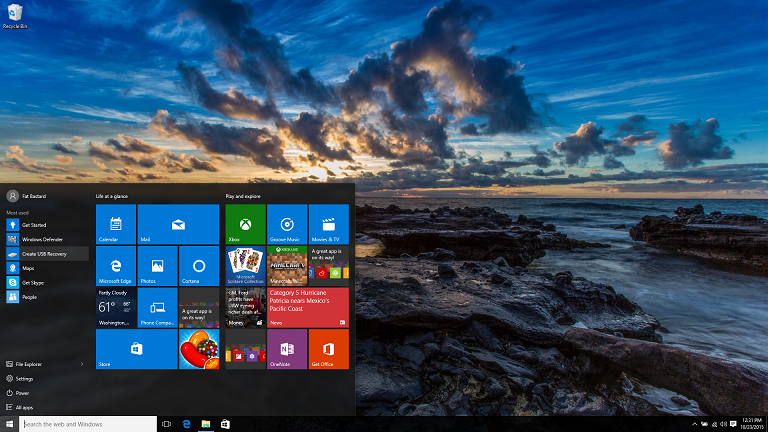
 > Create USB Recovery.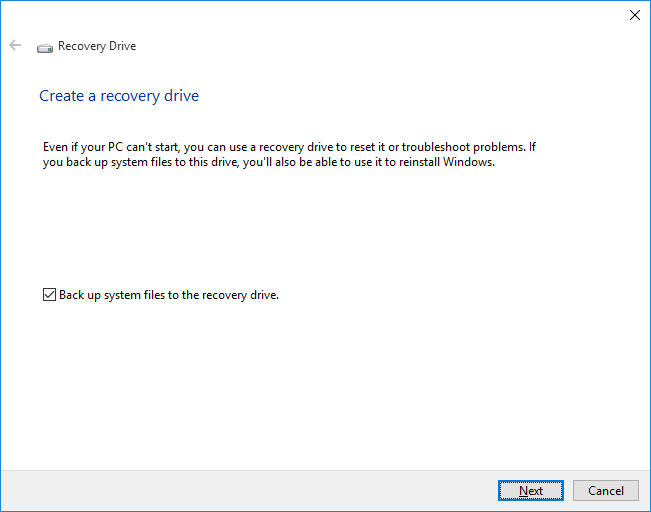
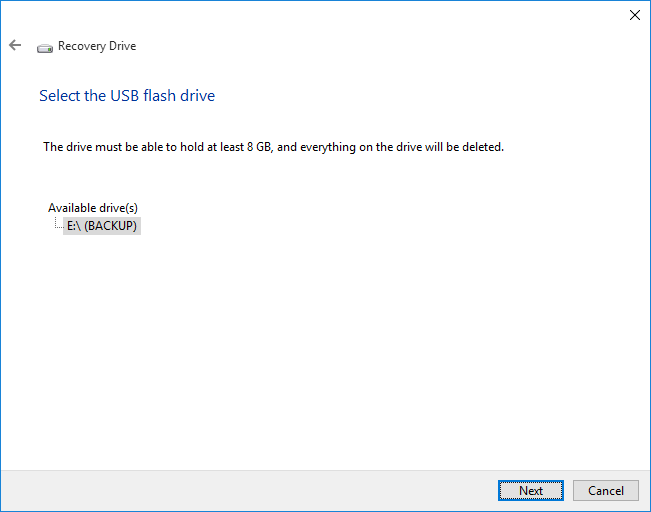
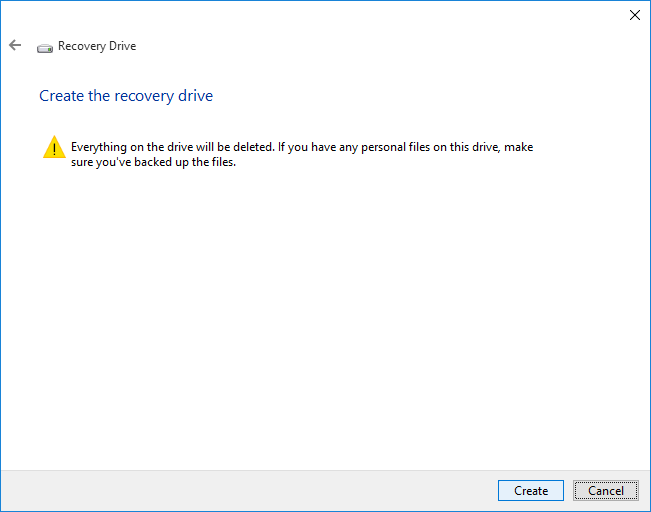
FYI, you can use a portal hard drive attached via a cable. When I couldn't find my small flash drives, that worked in a pinch. 🍝